Showing posts with label google apps. Show all posts

February 06, 2017

Using Google Q&A in large teaching sessions

By Martin Philip, Academic Liaison Librarian

I’ve always been a default Microsoft PowerPoint user, however Google’s recently added Q&A feature to their Slides product may have persuaded me otherwise.


PowerPoint still seems to be the most ubiquitous piece of presentation software. It’s certainly the one programme that I’ve spent most of my student and professional life using and the one I’m most comfortable creating slides with.


Nowadays, however, there are many presentation programmes to choose from; Google Slides, Apple’s Keynote, Prezi, Canva to name a few. They all essentially do the same thing which is to present your topic and/ or ideas, using, texts, graphics, photos and video.


I remember when I was first used Prezi around 2009. I used to use it quite extensively and was impressed with the animations between slides and the way you could present the slides or sections in a non-linear style. It seemed to work really well. However, I quickly moved back to PowerPoint for, as I saw it, the increased functionality especially when it came to the design of the slides themselves. I felt more comfortable with the wider font choices and editing tools available in PowerPoint..
Since joining York, around 3 years ago, I was introduced to, what is now called, the ‘G Suite’ of applications. I was familiar with Gmail having used it for many years in a personal capacity, however the other applications such as Docs and Sheets, I’d hardly ever used meaning I wasn’t hugely comfortable with them. The benefits of these tools quickly became clear due to collaborative nature of the applications. No longer did documents need to be emailed to colleagues, using the G Suite of applications we could all work ‘live’ in the same document, meaning versions were always up-to-date and stored in a central place online.
Until this academic year, ‘Slides’ was the main Google application I’d not really used, in part, due to my preference of PowerPoint. It was only recently, at a White Rose Consortium TeachMeet last year, when a colleague demonstrated a new feature in ‘Slides’ called ‘Google Q&A’ that I considered trying it out again.


What is Google Q&A?
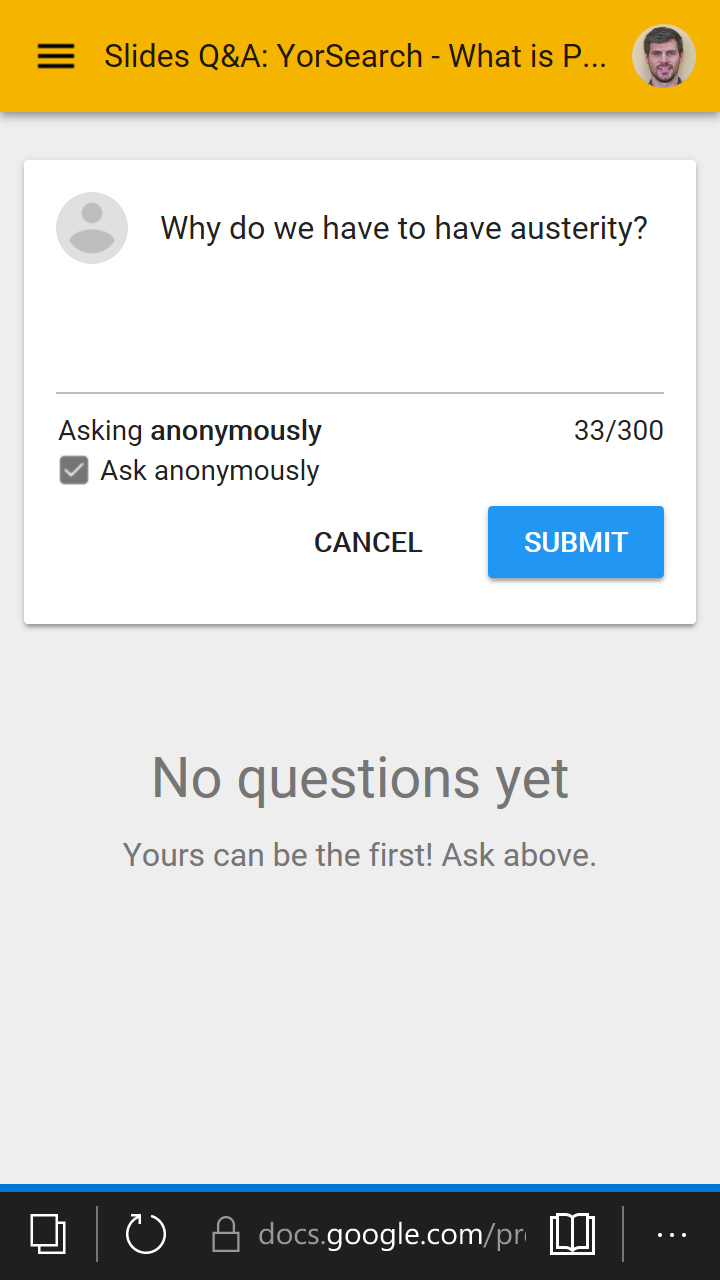
Google Q&A is designed to enable interaction with a large audience. In addition to the ‘Present’ button, there is now a Q&A option that opens a pop-up window and places a URL/ web address above each slide visible to the audience. The audience can then, using the browser on their mobile device, go to the web address displayed and begin asking questions to the presenter. The questions do not appear immediately on screen, they are displayed to the presenter in a pop-up window. The presenter can then, at a time they deem appropriate, respond to any of the questions asked by the group. They simply click on a question in their pop-up window and it then appears to the whole audience on the large screen.
I was really impressed with this functionality, it was definitely something not available in PowerPoint! I logged it in my mind thinking of some scenarios that I could use it in.



In the Summer, when planning a new lecture with a Politics tutor for the Autumn term, he expressed his frustration to me when trying to get students to interact in large lectures so when I mentioned Google Q&A to him, he couldn’t wait to use it!


We were already planning a joint lecture for the new ‘What is Politics?’ core 1st year undergraduate module and agreed that my 30 minute talk would use the Q&A feature.


The setup was a bit complicated. I could only get Q&A to work if I connected a laptop to the projector and changed the laptop settings to extend the display. This is required because the podium PCs seem to be fixed to the ‘duplicate’ setting which means the audience see the same as what the presenter sees meaning the pop-up window is visible. Extending the display of the laptop (pressing Win key + P) means I can drag the pop-up window onto my laptop screen so only I could see it.
wp_ss_20170127_0001.png
At the start of my talk I highlighted the URL that was above each slide and asked all the students to take a minute to open up the link in their browser to encourage them to participate by asking a question if they wanted to. Q&A allows students to contribute anonymously which I think encourages participation.


Over 30 questions were asked throughout the lecture, concerning the content of my talk and the tutors. We were both able to, there and then, answer questions from students providing an immediate response. Some students asked for clarification on the assignment that was set or other questions regarding the topic which the tutor was able to answer. Others asked questions about YorSearch and how to find specific resources.    


Reflecting at the end of the session, the tutor was extremely pleased as he has never had such an interactive lecture! He planned to continue to use Q&A throughout the term.


I encourage you to have a look at Google Q&A. From my limited experience, it’s definitely something you could incorporate into your larger teaching sessions to try and stimulate some interaction with your audience/ students.


December 13, 2016

The CRM at York: a technical overview

By Stephanie Jesper, Teaching & Learning Advisor

Last month, Michelle Blake wrote about our Customer Relationship Management system which we use in the Relationship Management Team at the University of York. She explained our reasons for creating our own system, and the benefits that system has given us. What she left to me to explain was the mechanics that lurk beneath its shiny surface. If you're the sort to quake at the sight of spreadsheets, you may wish to look away now.

It's fair to say that I'm obsessed with spreadsheets, so it was inevitable that my proffered solution to our CRM Question involved one. But it's not all spreadsheets. It is, though, heavily reliant on the Google suite of applications that we use here at York. The image below shows the fundamental components:

Components of our CRM system: CRM Form - CRM Form (responses) - CRM Query - CRM Alert - CRM Summary
Our CRM system, in bits.
Let's take each component one-by-one.

CRM Form

The front end of the system is based upon an old-version Google Form. The problem with Google Forms is that they are very vertical, especially when you have a list of options. We wanted something a little more compact, so I basically copied the script from the Google Form and tinkered with it. This was a lot easier to do with the old-style forms than it is with the new-style forms, so if you want to do something like this, you might be better finding an old-style form that you can copy and modify. 

Our CRM Form being filled in.
Filling in a CRM Form
The first modification I made was to run the options in columns, thereby saving considerable vertical space (you can imagine how long the page would have been with every option on its own line). There are also a considerable number of hidden questions that only display if certain options are selected. For instance, there's an option in the "Department" dropdown for "Multiple departments" that reveals a checkbox list of all departments. What's more, if you select a department for which we have an action plan, a checkbox list of actions is revealed so that progress on those actions can be logged. In total there are forty questions on that form, but only eleven are displayed by default. 

This toggled content is controlled using jQuery and style sheets. We also have some jQuery controlled autocompletion in the freetext "Other department" field. This searches against the default department list to mitigate against alternate formulations of existing department names.

The problem with hacking and modifying a Google Form is that you then need to host it somewhere. Initially we just put the CRM Form on a local drive, but now we have some password-protected webspace which means we can access it wherever we have a web connection. 

CRM Form (Responses)

When a CRM Form entry is submitted, it is fired off as the Google Form entry that it is, and gets added to a Google Sheet (as is the traditional output of a Google Form). The imaginatively titled CRM Form (Responses) spreadsheet is the heart, lungs, liver, stomach, and brain of the CRM (it's basically a giant spreadsheet-y haggis). It's a messy thing, reflecting the evolution of the system, and I hope to go in and simplify things at some point next year. 

The first thing that happens in this spreadsheet is that the data from the form gets tidied up using various arrayformulae. Comma-separated multiple-choice fields get pulled apart, mixed in with values from elsewhere, and are reconstituted as appropriate. The data then gets transformed into a layout that can be read by an Awesome Table (we'll come to that later). A second sheet counts up the number of matches for each form item to give a quantitative overview of our engagement. This is then broken down by department.

CRM Query

More in-depth analysis is carried out in our CRM Query spreadsheet which uses a Google Sheets query function to interrogate the data held in the CRM Form (Responses) spreadsheet. The query output can then be used to populate visualisations of our engagement like some of those we showed in the previous post. For example, here's some of our transactions by type:

An example chart from CRM Query
Transaction types visualised via the CRM Query spreadsheet

CRM Summary

I mentioned Awesome Tables earlier, and this is where they come in: the CRM Summary is a user-restricted Google Site with an embedded Awesome Table from which we can see the transactions that have taken place. It looks something like this:

A screenshot of the CRM Summary, showing a couple of transactions
A couple of recent transactions in the CRM Summary

Like the query function in CRM Query, the Awesome Table lets us interrogate the CRM Form (Responses) spreadsheet as a database. But it does it in a way which looks a lot prettier and which can be used by more than one person at once. In the above example, I've limited to only those transactions with which I've had some involvement. There's even an edit button which allows me to revise any of the information I submitted.

CRM Alert

Going to a website or a spreadsheet to see what people have been doing is all very well, but it's a bit of a chore. If only we could set the spreadsheet up to notify us by email when something interesting happens... Well with Google Sheets we can. Each member of the team has their own CRM Alert spreadsheet which queries the CRM Form (Responses) sheet. Individuals can tailor the query to match search terms such as their department or area of interest. A Google Script keeps an eye on the spreadsheet and if a new entry gets returned by the query, an email gets fired off containing all the relevant details. 

Here's the code we use - if you're using a device with a pointer you can hover for a few bonus annotations:

function runAlert() {
  SpreadsheetApp.flush();
  var sheet = SpreadsheetApp.getActiveSheet();
  var from = sheet.getRange("Database Query!I1").getValue();
  var tot = sheet.getRange("Database Query!J1").getValue();
  var to = sheet.getRange("Database Query!J1");
  if(from!=tot) sendEmail(from); 
  if(from!=tot) to.setValue(from); 
}

function sendEmail(from) {
  var sheet = SpreadsheetApp.getActiveSheet();
  var line1 = sheet.getRange("Database Query!A"+from).getValue();
  var line2 = sheet.getRange("Database Query!B"+from).getValue();
  var line3 = sheet.getRange("Database Query!C"+from).getValue();
  var line4 = sheet.getRange("Database Query!D"+from).getValue();
  var line5 = sheet.getRange("Database Query!E"+from).getValue();
  var line6 = sheet.getRange("Database Query!F"+from).getValue();
  var line7 = sheet.getRange("Database Query!G"+from).getValue();
  var line8 = sheet.getRange("Database Query!H"+from).getValue();
  var line9 = sheet.getRange("Database Query!I"+from).getValue();
  
  var email = sheet.getRange("Database Query!B1").getValue()
  var subject = "CRM Alert";
  var body = "An entry matching your search terms has been added to the CRM:\n\nDATE:\n"+line1+"\n\nNAME:\n"+line2+"\n\nDEPT:\n"+line4+"\n\nCONTACTS:\n"+line5+"\n\nTRANSACTION:\n"+line6+"\n\nAIMS:\n"+line7+"\n\nCATEGORY:\n"+line8+"\n\nDETAILS:\n"+line9 ;
  
  MailApp.sendEmail(email,subject,body); 
}


The first function checks to see if there are any new transactions, and the second generates the email before firing it off. Obviously the cell references are rather tied to our specific setup, but the basics are there should you want to try something similar.

The result is an email that looks something like this:

An entry matching your search terms has been added to the CRM:

DATE:
Mon Dec 12 2016 00:00:00 GMT-0000 (GMT)

NAME:
Steph Jesper

DEPT:
External Relations

CONTACTS:
Father Christmas

TRANSACTION:
Other: Christmas List

AIMS:


CATEGORY:
Collections,Liaison and Relationships: General

DETAILS:
I sent Father Christmas my Christmas List. This year for Christmas I have asked for a shiny spreadsheet, a CRM system, and some gin.


If this transaction matched any of the search terms my colleagues have set up, they will be receiving an email now, just like this one. Perhaps they're writing a Christmas List right now too.

He knows when you are sleeping. He knows when you're awake. He knows if you've been bad or good, so be good for goodness sake...

Unlike Father Christmas, the CRM doesn't know any of this. It only knows what we put in it. And what we put in it may vary depending on the precise nature of our role. But hopefully what we get out of it is a good insight into what the rest of the team are up to and how it relates to our own activity.

November 04, 2016

The CRM at York: what it's for, how it works, and what it looks like

By Michelle Blake, Head of the Relationship Management Team

From time to time I get asked about our Customer Relationship Management system which we use at York. I thought it would be useful to share what we’ve done and why with the community (using some of the questions I get asked as the basis for this blog post). My colleague Steph Jesper, who built the system (based on Google Apps suite of tools) will follow this post up with one in December about how she actually built the system itself.  

The different components of the CRM

Background

In 2014 as part of the reorganisation of the Relationship Management Team we wanted to implement a Customer Relationship Management (CRM) system in order to ensure that all staff knew what activity was taking place across the team. This was important as we were moving from quite a traditional liaison team model (based on clusters, like faculties) to a functional approach based around 3 teams - Academic Liaison, Research Support and Teaching and Learning. Staff were concerned about not knowing what was happening as meetings would be required with departments from each of the different teams.

We started by trialling a commercial product which integrated with Google (as we’re a Google institution) but it did not meet our user requirements and success criteria.  Due to limited budgets for such a system we decided to build our own system using Google Apps. A member of our Teaching and Learning team led the development of the CRM over Summer 2014, ensuring that it integrated team priorities such as our action plans so that as much as possible everything was in one place.

What the CRM does

The screen which greets anyone adding an entry to the CRM
In summary our CRM allows staff to provide summaries of meetings, phone calls and other interactions they have with departments in order to help with information flow and ensuring that all members of the team are aware of what is happening. This provides several functions:

  • If a member of staff is off sick other members of the team know what is happening;
  • The CRM provides automated alerts based on flexible criteria e.g. an Academic Liaison Librarian (ALL) can set up an alert for a particular department (then if someone from Research Support meets with their department they will find out automatically - and vice versa);
  • ALLs can update their action plans directly in the CRM - saving time;
  • Managers and other staff can look to see what activity is happening and taking place in the team;
  • The information within the CRM can be used to directly help make changes to services or processes e.g. Subscriptions Review process was reviewed with information being fed into one system making the analysis much quicker and easier.

Over the last year we've expanded use of the CRM across the Library, primarily to staff in professional roles in Customer Services and Collections Services as well as the Senior Management team. They mainly use it for keeping up-to-date purposes rather than adding lots of entries themselves (e.g. our collections staff knowing what discussions are taking place about reading lists or new courses). Feedback has been great and it makes it far easier for everyone to see the work which RMT do - which can otherwise at times be quite invisible (relationship building often is, as it often takes a lot of time).

Our CRM is focused on interactions with academics and student bodies but not students themselves. This is intentional as we want value-added transactions that are useful for people to know about so we don't add everything e.g. we don't add things like academics asking for a book to be ordered but would add something about a discussion to change the skills session that we deliver. What we would call day-to-day transactions are instead in the subject emails (we have subject emails for each department rather than individual/personal accounts as we have so many part time staff particularly in our liaison team). We have quite a different team ethos at York than a lot of other HE libraries - it's very much a team effort and people aren't just responsible for departments where they are the named contact (although these ones are obviously the focus for them, they are expected to ensure the service is consistent across all departments and to pick up emails etc. when people are on leave, for part time staff etc).

What did we want to achieve?

There were a few things we wanted to achieve but first and foremost was ensuring all the team knew what was going on across departments so they didn't turn up to meetings etc. not knowing their colleague had been there the week before doing something else. It's also a useful way for people to stay up-to-date about their own area e.g. a liaison librarian can set up an alert to be notified every time someone sees someone in their department, say Chemistry. So if a colleague in Research Support went to talk to the department or had a meeting with an individual, they would add this to the CRM and it would automatically email the liaison librarian telling them about the interaction. It means staff don't have to remember to tell everyone who they talked to. You can also set up alerts based on keywords e.g. Open Access or categories we use e.g. Student skills. Again this means that staff in Research Support or Teaching and Learning can then keep up to date with what activity/conversations are happening in departments.

It's important to say here that the CRM isn't a replacement for talking to colleagues and there is a clear expectation that if, for example, a liaison librarian talked about research support and suggested they attend an upcoming meeting, that they would then go talk to them in person about this.

Automatic summaries of interactions
From a manager point of view, it’s possible to view all activity taking place across departments without having to ask. It’s possible for managers like myself to then make connections in a way that individual team members often can't because they aren't seeing everything (and there is no expectation they should) e.g. suggesting that people are doing similar work or they should talk to so and so (which may not be obvious to them). Sometimes this might be making connections outside of Information Services too e.g. with our colleagues in the Academic Support Office.

It also means if staff leave/go on holiday etc we can easily see what's been happening in the department. We had a new member of staff start in our liaison team in December 2015 and she was able to look at what activity had been happening rather than us relying on someone remembering everything that had happened.

It also acts as the central repository for our annual department action plans. This is important for the liaison librarians as they can easily update the work they're doing on action plans with the CRM.

All of these things it does brilliantly.

Reporting

In addition, I wanted to be able to do some smart reporting. This is something we are only just starting to play with (mainly because of time/resource issues). However, it's already proving useful e.g. we can get data about who is seeing who and what about (which areas are most popular) and we will be able to track this over time to see if it changes; which departments do we have both most interactions with (this isn't necessarily good or bad but rather having this information means we can then contextualise it e.g. lots of interactions might be bad because of some issue they have with us but likewise if we're never seeing the department that's probably not good either!). Also do we see a lot of staff in the department or is it just one or two (I would argue you want a decent amount of penetration within the department so you aren’t getting a skewed view of it). It also means we can look across departments and start conversations about why the activity is so different - this is really interesting and means staff can learn from each other. Currently we have only started looking at reports like this with the liaison team but we are keen to also investigate how we can better use the data with both the Teaching and Learning and Research Support teams.

A potential way to visualise the data in future
Do you have any advice for a Library at the beginning of this process?

Really think through all the systems you have, what you'll use it for, how the categories will work (define them and make sure people use them consistently). We have an enquiry management system (LibAnswers), departmental (rather than personal) email addresses, a system for 1:1 student appointments (Target Connect) and the CRM. We are clear (and have gone back to rationalise) what each one is for and how they interrelate to each other - always checking they are all still needed. We have put guidance together about how we intend it to be used etc. and we revisit this usually annually.

Make sure you use the data that it gives you and show the staff inputting that you're using it. The CRM took a while for people to really put everything in because this wasn't happening to start with (primarily to do with staffing and time); however, once people saw it was being looked at/used they got much better at inputting what they were doing.

Amazingly our system came at no additional cost to the institution (or Information Services) which meant that we had little/no opposition in implementing it. It used tools we already had (Google Apps) and is easy for the team to use - including while on the move.
Who else is doing this?
I am aware there are other institutions who are using CRMs, either their institutional CRM or an in-house system. If you’d like to share what you’re doing, I’m sure the community would love to hear about it.

Can I see it?
Last year I presented on our CRM at both the Northumbria conference (July 2015) with my colleague Steph (who built the system itself) and at the first Relationship Management conference (November 2015). I've put the screenshot examples from that presentation throughout this post.